![White-logo-email.png]](https://support.kaiterra.com/hs-fs/hubfs/Images/White-logo-email.png?height=40&name=White-logo-email.png)
Below are some quick instructions for installing the Sensedge Go. For more details on installation and setup, please click the image above and download the full user manual and installation guide.
Note: this article is for the Sensedge Go User Manual and Installation Guide.
For the Sensedge Go Configuration Guide, please refer to this article.
Installing the Sensedge Go
Table of Contents
Initial Setup Requirements
First, ensure you have all the necessary components:
- Sensedge Go devices
- Kaiterra Gateway
- Kaiterra Go app, available in the App Store or Play Store.
Gateway Setup
- Attach the gateway antenna to the gateway
- Connect the gateway to Ethernet, unless using a cellular-enabled gateway.
- Connect the gateway to power
- Allow 4 minutes for complete boot-up (important: do not disconnect power during this time)
Placement Guidelines
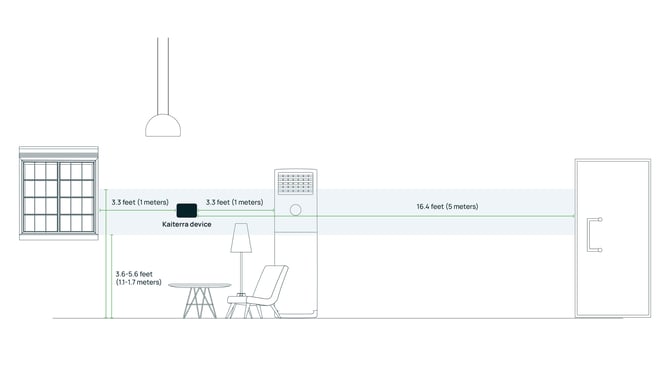
- Wall-mounted and centrally located within monitored spaces
- Mounted within the breathing zone: between 3.6 to 5.6 feet (1.1-1.7 meters) from the ground
- Located at least 3.3 feet (1 meter) away from operable windows, as well as air filters and fresh-air diffusers
- Located at least 16.4 feet (5 meters) away from exterior doors
Important Installation Considerations
- The device should be installed indoors only
- Ensure both the upper and lower sides remain unobstructed for proper airflow
- Keep away from heat sources like radiators, furnaces, or stoves
- Avoid areas with high humidity or potential water exposure
- If using USB-C power, ensure proper cable routing through the designated strain relief points
Device Installation
For the standard surface mount installation using double-sided tape:
- Prepare the mounting surface by cleaning it with a 50:50 mixture of isopropyl alcohol and water, or heptane. Ensure the surface is completely dry.
- Power the device using either:
- The pre-installed 3.6V Li-ion batteries, or
- A USB-C power connection (cable not included)
- Turn on the device using the switch on the back. The status LED should illuminate blue for a few seconds, followed by blinking orange.
- Remove the protective liner from the double-sided tape on the device.
- Press the device firmly onto the wall at the desired location, applying at least 15 psi (100 kPa) of pressure.
- Allow 24 hours for the adhesive bond to fully cure.
Device Configuration
- Open the Kaiterra app on your mobile device
- Follow the in-app instructions to add your Sensedge Go
- Log into the Kaiterra dashboard to view your air quality data
Troubleshooting
Factory reset
To clear all settings and put the Sensedge Go back into its factory state:
- Locate the reset hole on the back of the Sensedge Go, below the power switch.
- Turn on the device and wait for it to boot up fully, confirmed when the blue LED light turns off.
- Insert a pin or similar object into the reset hole.
- Press and hold the Reset button inside the hole for about 10 seconds.
- Release the button when the LED begins blinking rapidly in blue, indicating the device has been reset to factory settings.
LED codes
|
Device State |
LED Behaviour |
|
Booting up |
Solid blue for 4 seconds |
|
Waiting for configuration |
Pulse orange every 1 second |
|
Searching for / connecting to gateway |
Pulse orange every 3 seconds |
|
Connected to gateway |
Solid blue for 4 seconds |
|
Factory-reset countdown |
Blink blue for the final 10 seconds of the countdown |
|
Factory-reset confirmed |
Fast blink blue |