![White-logo-email.png]](https://support.kaiterra.com/hs-fs/hubfs/Images/White-logo-email.png?height=40&name=White-logo-email.png)
When Should You Use This Page?
Use this page when you want to view your devices and check their status.
What You’ll See
You’ll see a list of all devices in your organization.
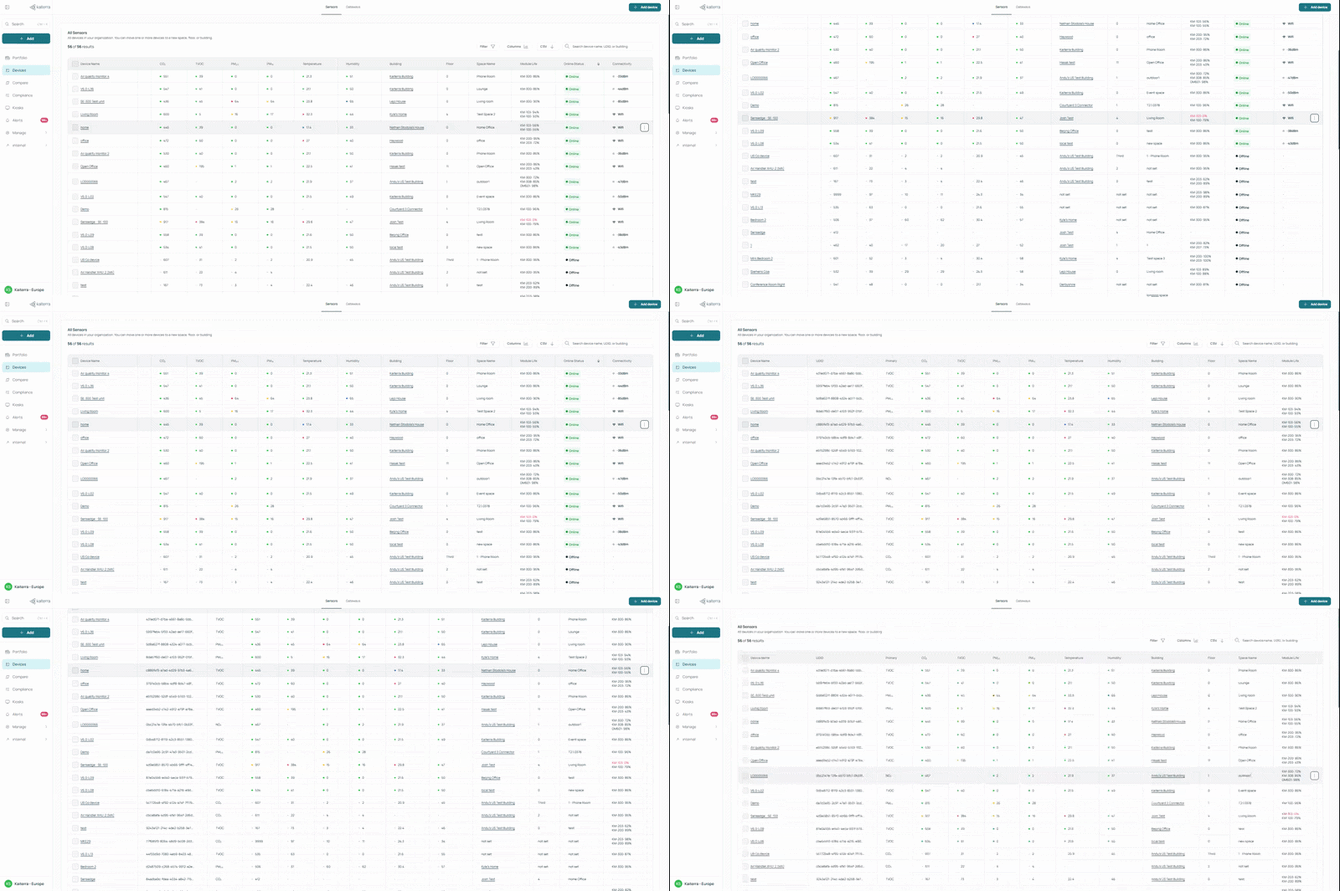
Each device includes its readings for air quality and thermal metrics, along with its assigned building, floor, and space. You’ll also see details such as Module Life and connection status.
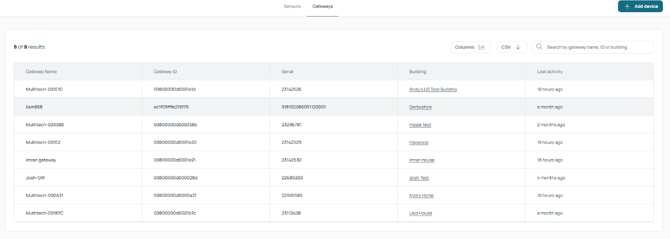
You can switch to the Gateway view, which shows all gateways in your organization, including their name, ID, serial number, assigned buildings, and last activity.
You can also export your device data by clicking the “CSV” button, which downloads the data as an Excel file.
Changing your View
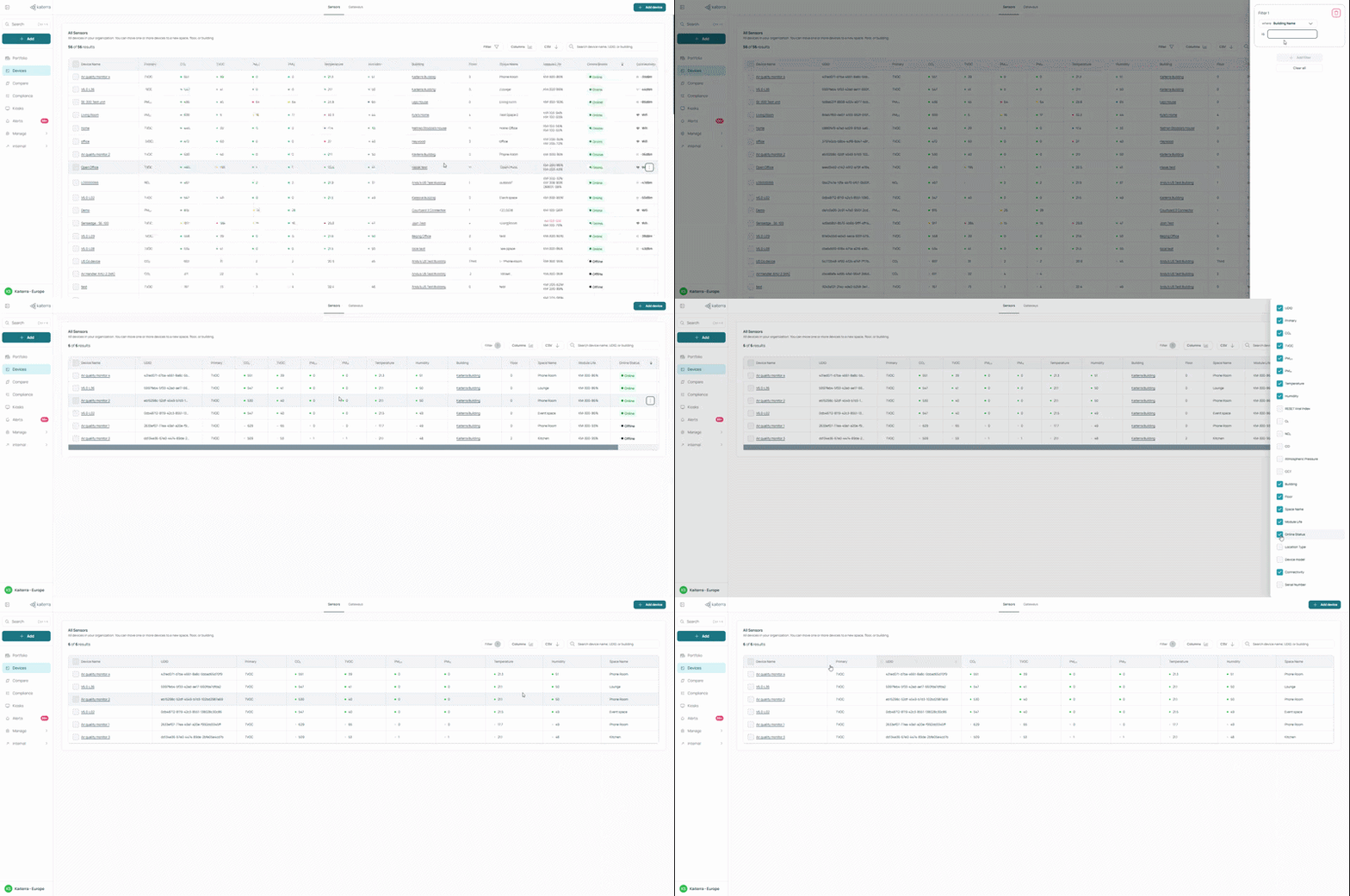
You can adjust how devices are displayed based on your preference.
You can use filters to show specific devices based on building, floor, space etc.
You can also customize the columns by adding or removing metrics.
The order of the columns can be adjusted by dragging them to change the sequence.
These same options are also available in the Gateway view.
Adding Device
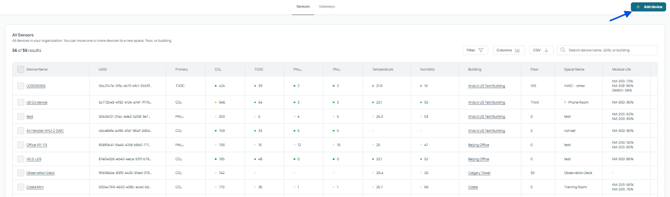
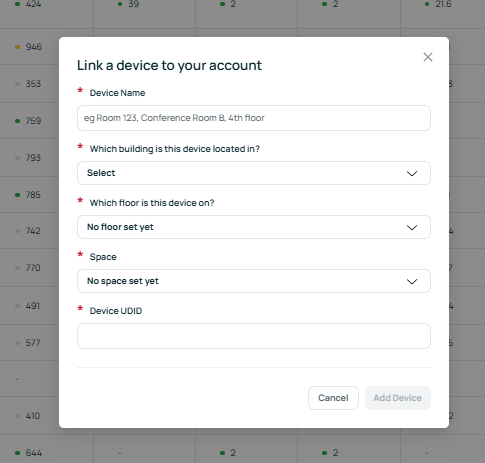
You can add more devices to your organization by clicking the "+ Add device" button located in the upper-right corner of the page. This opens a new centered popup window where you must fill in the specific details for your hardware.
In this window, you will enter a Device Name, select the Building, Floor, and Space where the sensor is located from dropdown menus, and provide the Device UDID.
For larger projects that require registering many sensors at once, you can use the Bulk Device Upload feature to import your devices using a CSV spreadsheet.