![White-logo-email.png]](https://support.kaiterra.com/hs-fs/hubfs/Images/White-logo-email.png?height=40&name=White-logo-email.png)
When Should You Use This Page?
Use this page when you need to update building details, manage floors, spaces, or bulk uploading devices.
What You’ll See
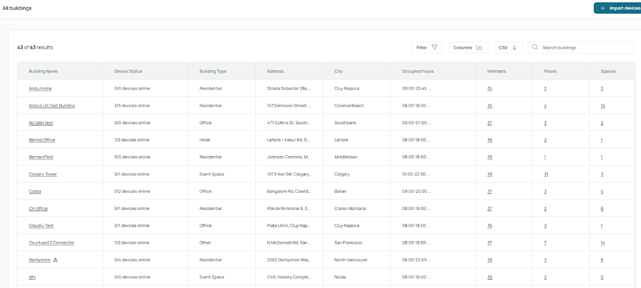
You’ll see different sections that allow you to manage your building’s structure and information.
Editing Building Details
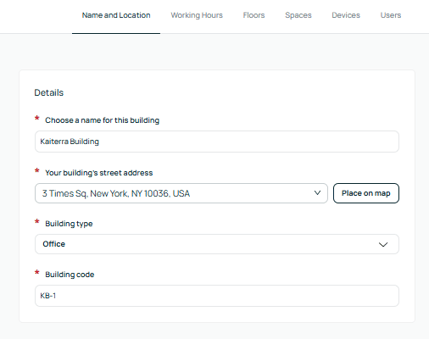
You can update basic building information such as the building name and other details.
This allows you to keep your building information accurate and up to date.
Managing Floors

You can create and manage floors within your building.
This is where you define the number of floors, which will later be used when uploading floor plans and assigning spaces.
Managing Spaces
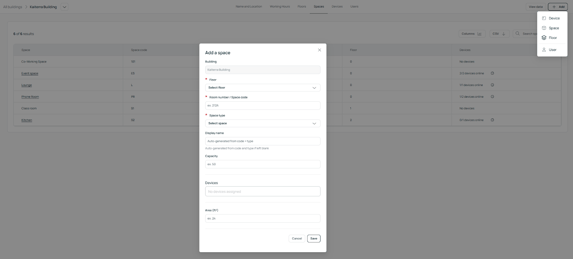
You can create and manage spaces within each floor.
Spaces represent areas such as meeting rooms, offices, or zones within your building.
Importing Devices
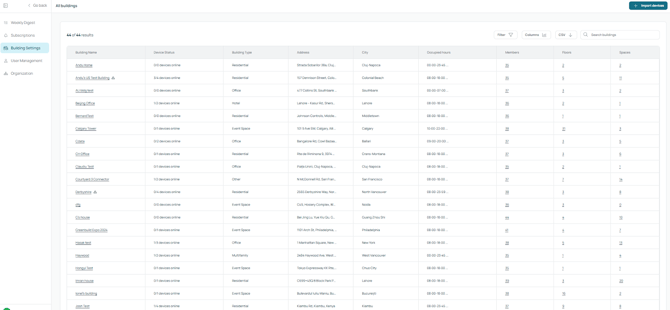
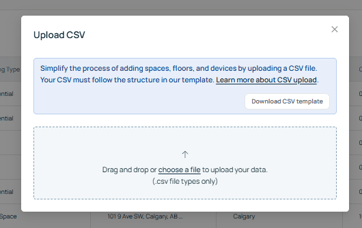
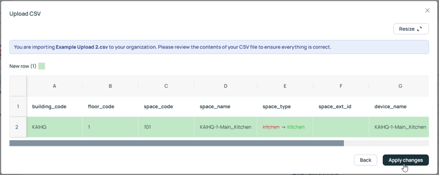
For larger buildings, you can upload multiple devices at once using the bulk upload feature.
This allows you to quickly add and assign devices without needing to set them up individually.
Note: the building must already exist on your Kaiterra Data Platform.
That said: devices from multiple buildings can be added from the same CSV upload!
Here are the steps for using our Bulk Device Upload:
- Click here to download our CSV template
- Fill in the appropriate information for each device
- building_code
A simple abbreviation/short form code to represent the building
ie. 30 Rock might be 30R; a school might be USD123; could also be a region/state - floor_code
Floor Number
ie. 1, 2, 3, 4, 5, 6, etc. - space_code
Room Number -- or the designation on the floor plan
ie. 123, 201, 404, etc. - space_name
Specific name assigned to the room on the floor plan
ie. Nintendo, Gryffindor, Frodo, Shakespeare, etc. - space_type*
What type of room is the device installed in?
See the list of valid space types at the bottom of this article (they must match)
ie. kitchen, conference_room, open_workspace, etc. - space_ext_id [Optional]
If you have a Serraview ID mapping to this space
ie. serraview:123456 - device_name
[The following is a Best Practice and not a strict requirement]
You can use an Excel or Google Sheets formula to piece this together:
BuildingCode-FloorCode-SpaceName-SpaceType
ie. 30R-2-Nintendo-ConferenceRoom - device_udid
Kaiterra UDID -- if you do not have it, we can use the Serial Number to find it for you
ie. 0000-474f-4f39-b549-2ef13a45e97c - device_serial
Kaiterra Serial Number -- available on the box or on the device itself
ie. VG20D99999
- building_code
- Navigate to the "Manage" tab, select on “Building Settings” click on "Import Device" in the top-right-hand corner, and follow the on-screen instructions
You can also use this CSV upload to make changes to existing devices by applying the changes in the CSV and then re-uploading the file.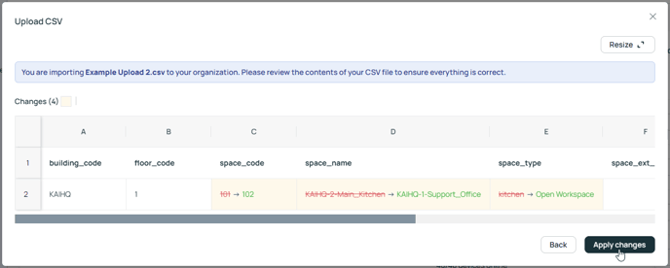
*List of valid space types:
- private_office
- open_work_area
- phone_room
- small_meeting_room
- large_meeting_room
- classroom
- event_space
- lounge
- kitchen
- cafeteria
- wellness_room
- fitness_room
- gym or gymnasium
- library
- reception or lobby
- corridor or hallway
- restroom
- storage or utility
- mechanical_room
- server_room or IDF
- induct_return_air
- induct_supply_air
- outdoor
- other