![White-logo-email.png]](https://support.kaiterra.com/hs-fs/hubfs/Images/White-logo-email.png?height=40&name=White-logo-email.png)
When Should You Use This Page?
Use this tool when you want to compare how different devices, spaces, or buildings perform over the same time period.
What You’ll See
At the center of the page is a graph where each selected device appears as its own line.
This allows you to see how conditions change over time across multiple spaces at once.
As you move your cursor across the graph, you’ll see the exact values for each device at a given moment, making it easier to compare behavior directly.
How to Use the Graph
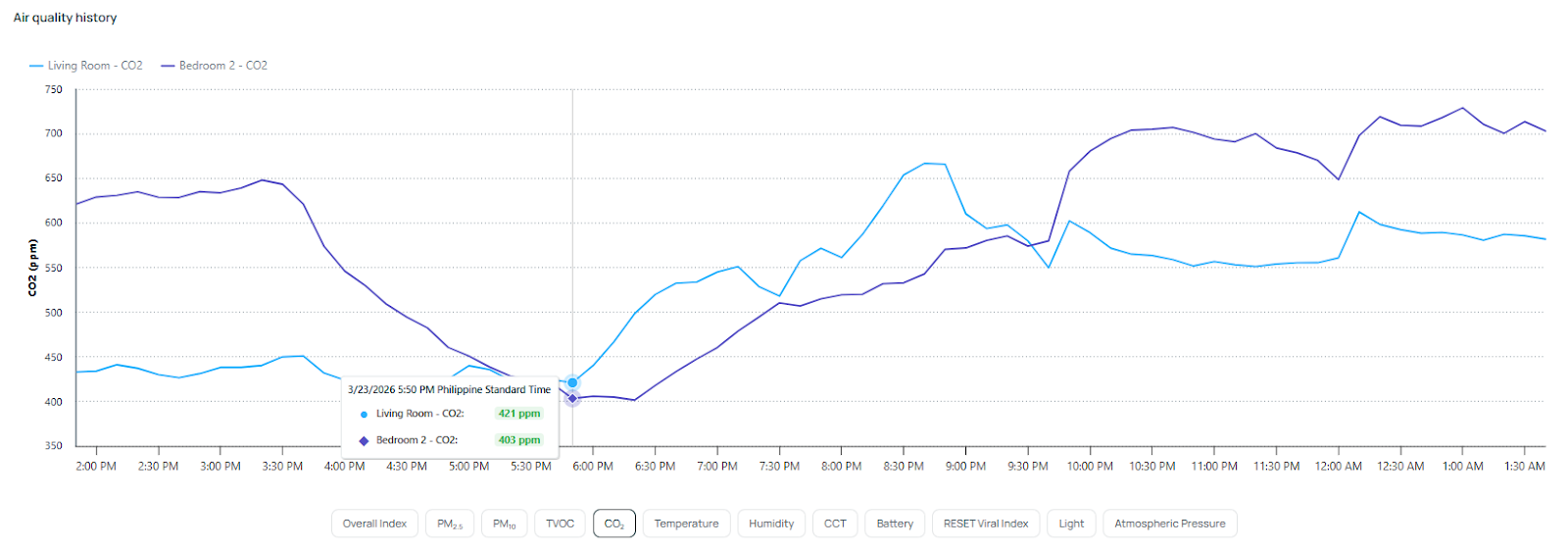
Start by selecting the devices or spaces you want to include. Once selected, the graph will update to show their data together.
You can hover over the graph to view exact values at any point in time. This helps you compare how each device behaves at the same moment.
Selecting Devices
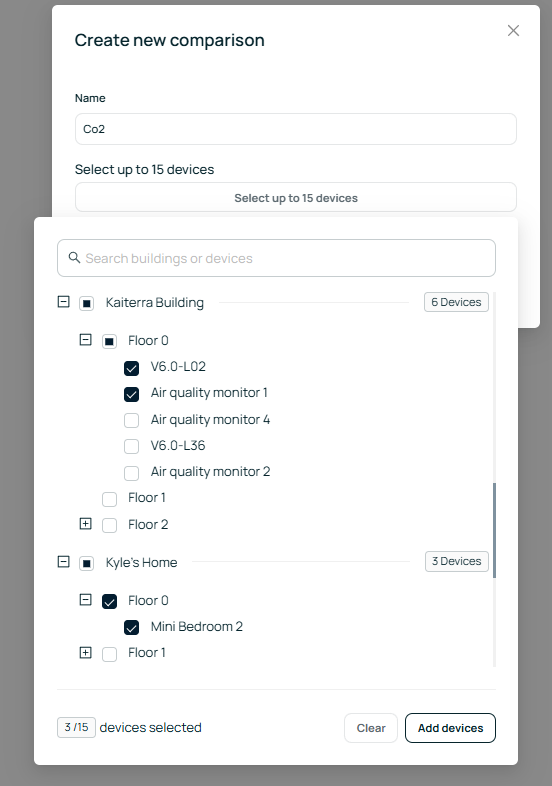
To start comparing, you need to name your table and select the devices you want to include, up to 15 devices.
Once selected, their data will appear together on the graph. Each device is shown as its own line, making it easy to see differences across locations.
Choosing What to Compare
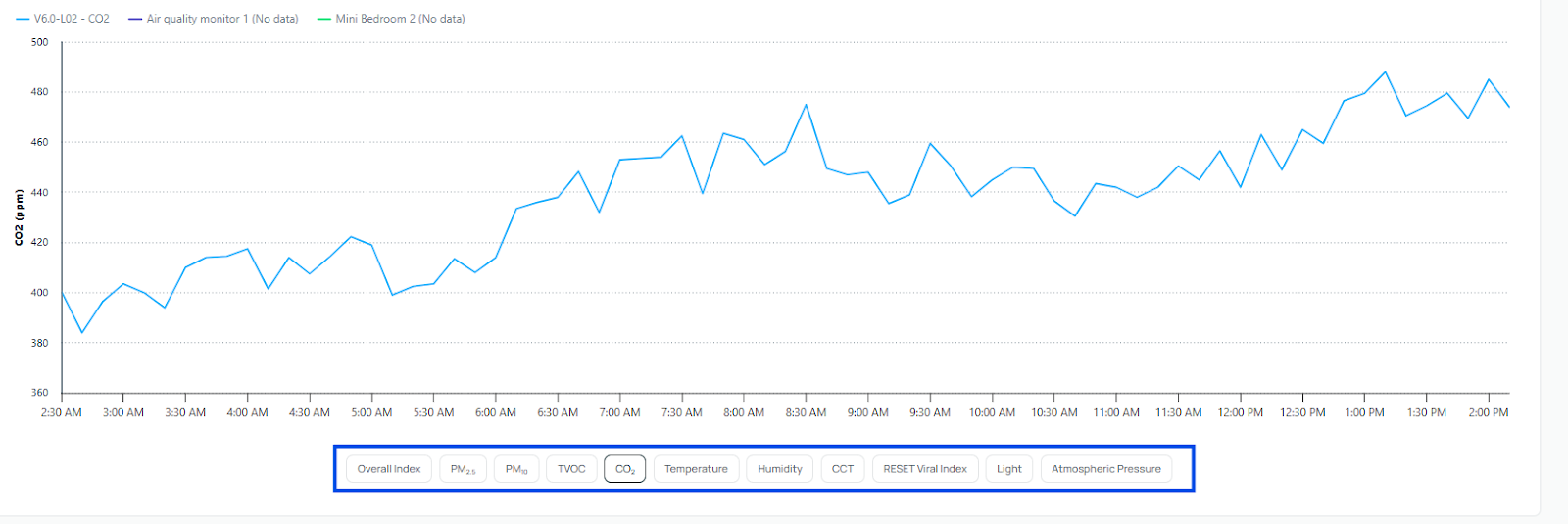
You can select which metric to display, such as CO₂, PM2.5, PM10, TVOC, temperature, or humidity.
The graph will update based on the selected metric, showing how each device performs for that specific data point.
Adjusting the Timeframe
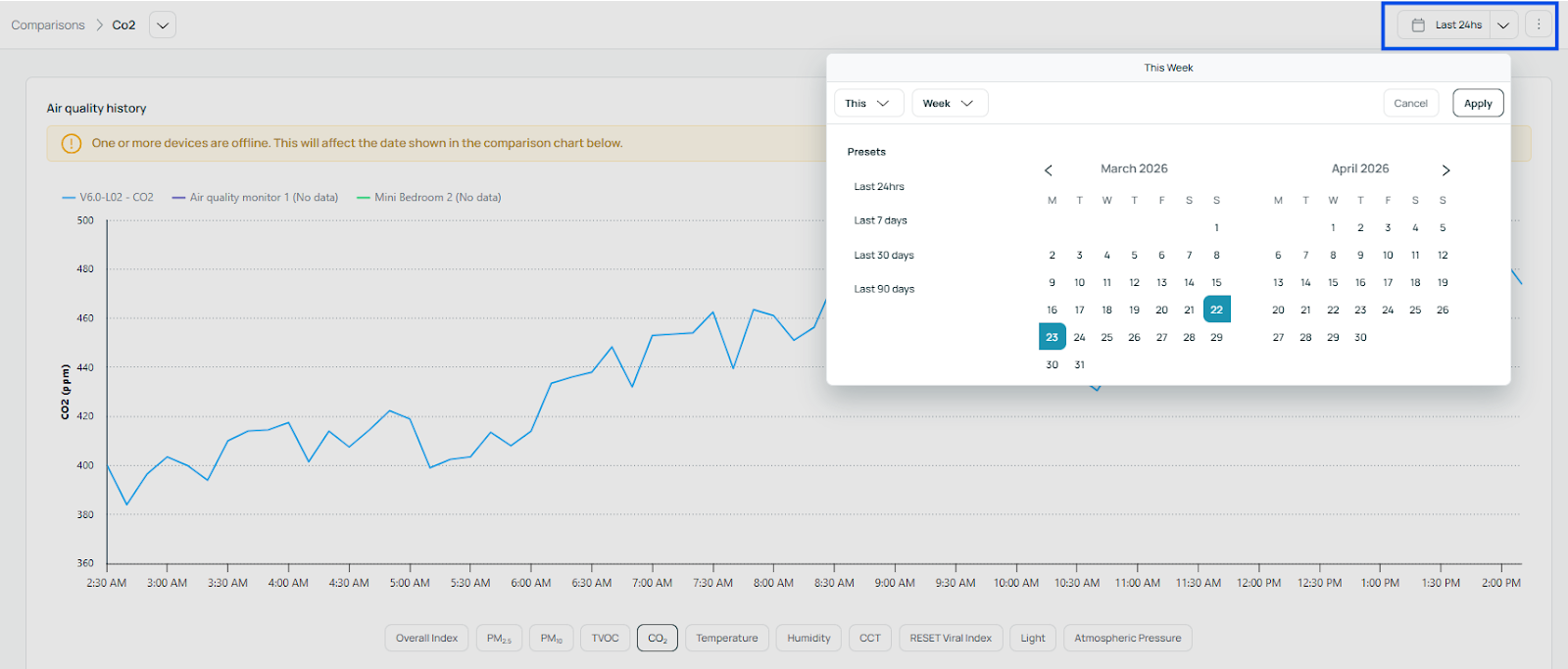
You can change the date range to view data over different periods.
All selected devices will follow the same timeframe, allowing for a consistent comparison.