![White-logo-email.png]](https://support.kaiterra.com/hs-fs/hubfs/Images/White-logo-email.png?height=40&name=White-logo-email.png)
When Should You Use This Page?
Use this page when you want to view real-time and historical data.
Navigating to the Live Data Page
There are multiple ways to access the Live Data Page.
-
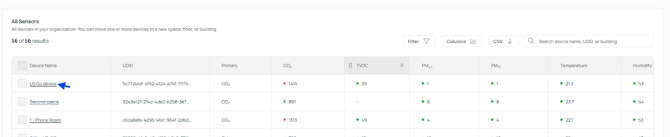
You can go to the Devices Page and select a device.
-
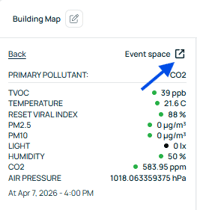
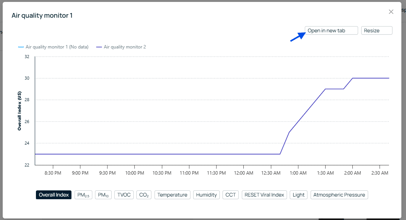
From the Floor Plan, you can click a space to view detailed data, then select the space name and open it in a new tab.
-
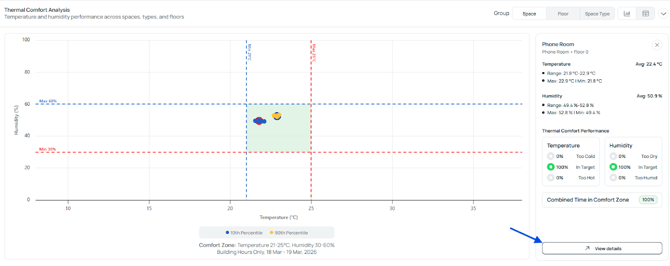
On the Diagnostics Page, you can select a point and click View Details.
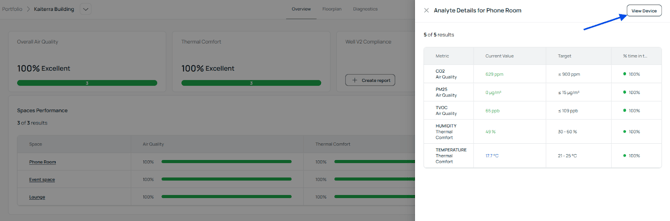
-
The most common way is from the Building Page, where you can select a space and click View Space.
What You’ll See
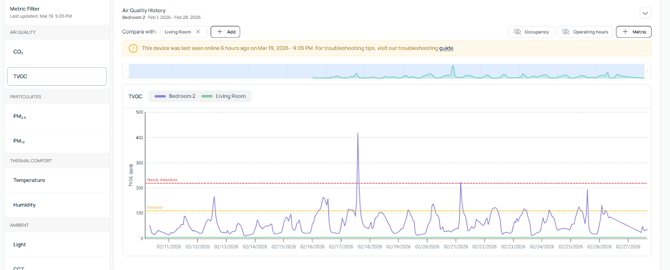
At the center of the page is the Air Quality History graph, which shows how different metrics change over time.
On the left side of the graph, you’ll find the Metric Filter, where you can select different metrics to display.
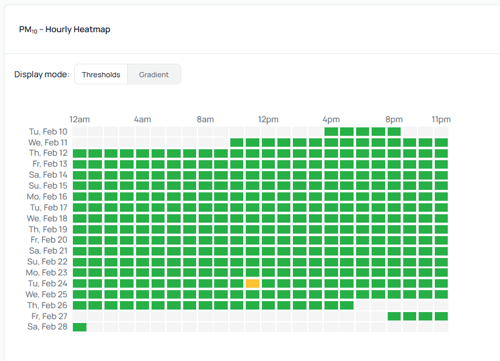
Below the graph, you’ll also see the Heatmap that provides a quick view of patterns over time.
Using the Air Quality History
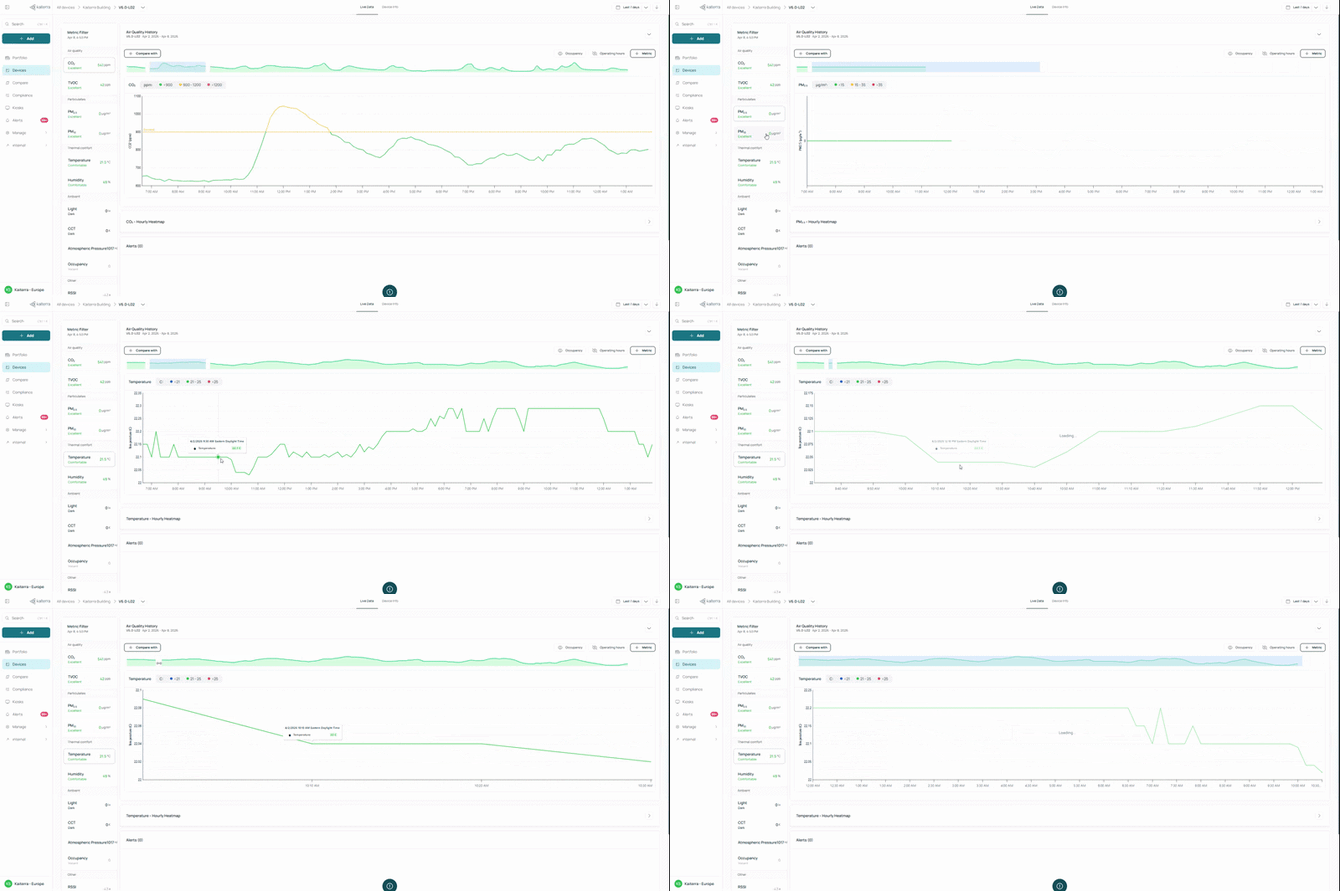
The Air Quality History graph is where you explore how your data changes over time.
You can choose which metrics appear on the graph by selecting them from the Metric Filter. This allows you to focus only on the data you want to view.
You can hover over the graph to see exact values at a specific point in time. This helps you understand when changes happen and how values shift throughout the day.
You can also click and drag across the graph to zoom into a specific time range. This allows you to focus on shorter periods and view changes more closely.
Adding Context
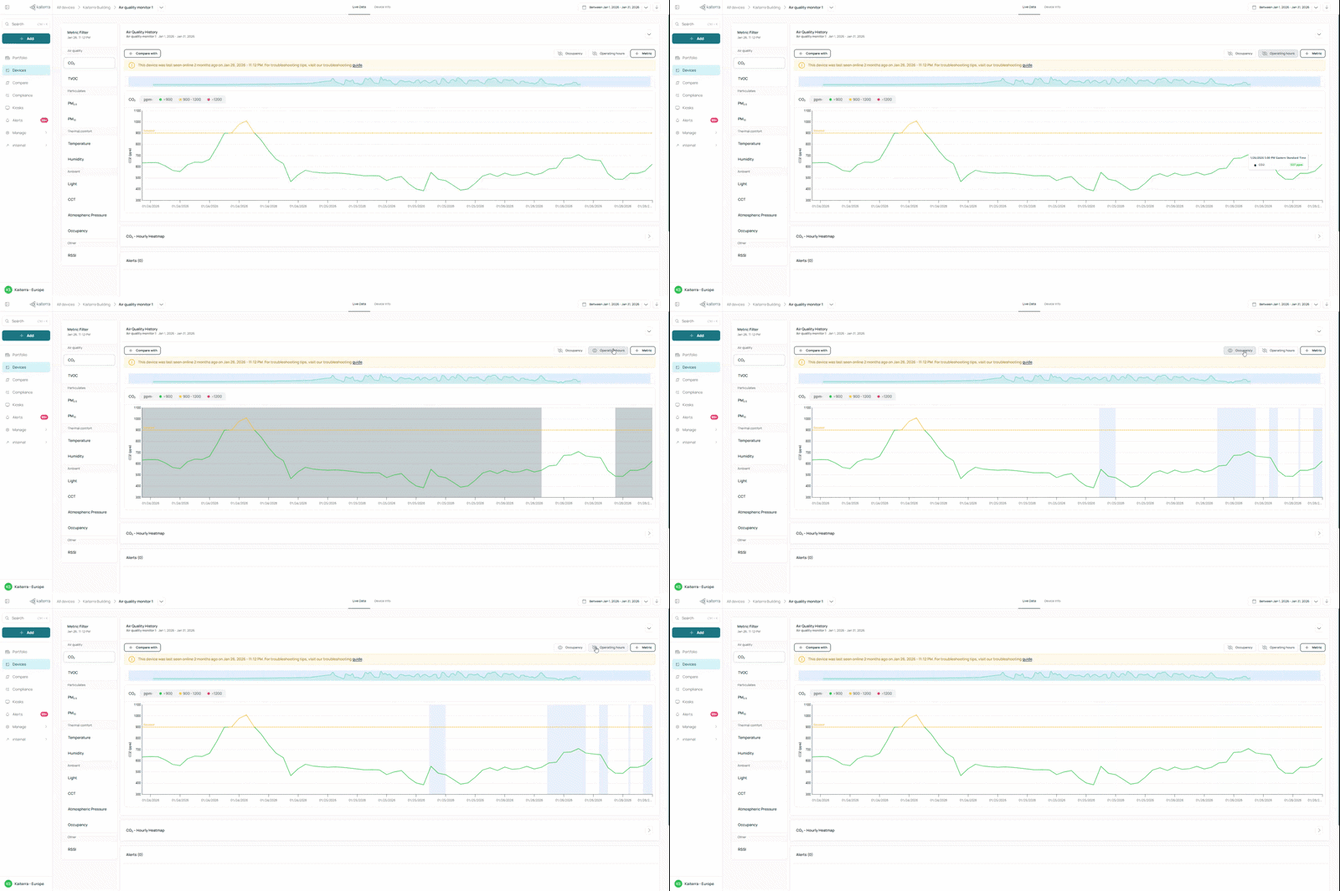
To better understand the data, you can turn on additional layers such as occupancy and operating hours.
These appear alongside the graph and help explain why certain changes may happen. For example, you may see values increase during occupied hours or drop when the space is not in use.
Comparing Data
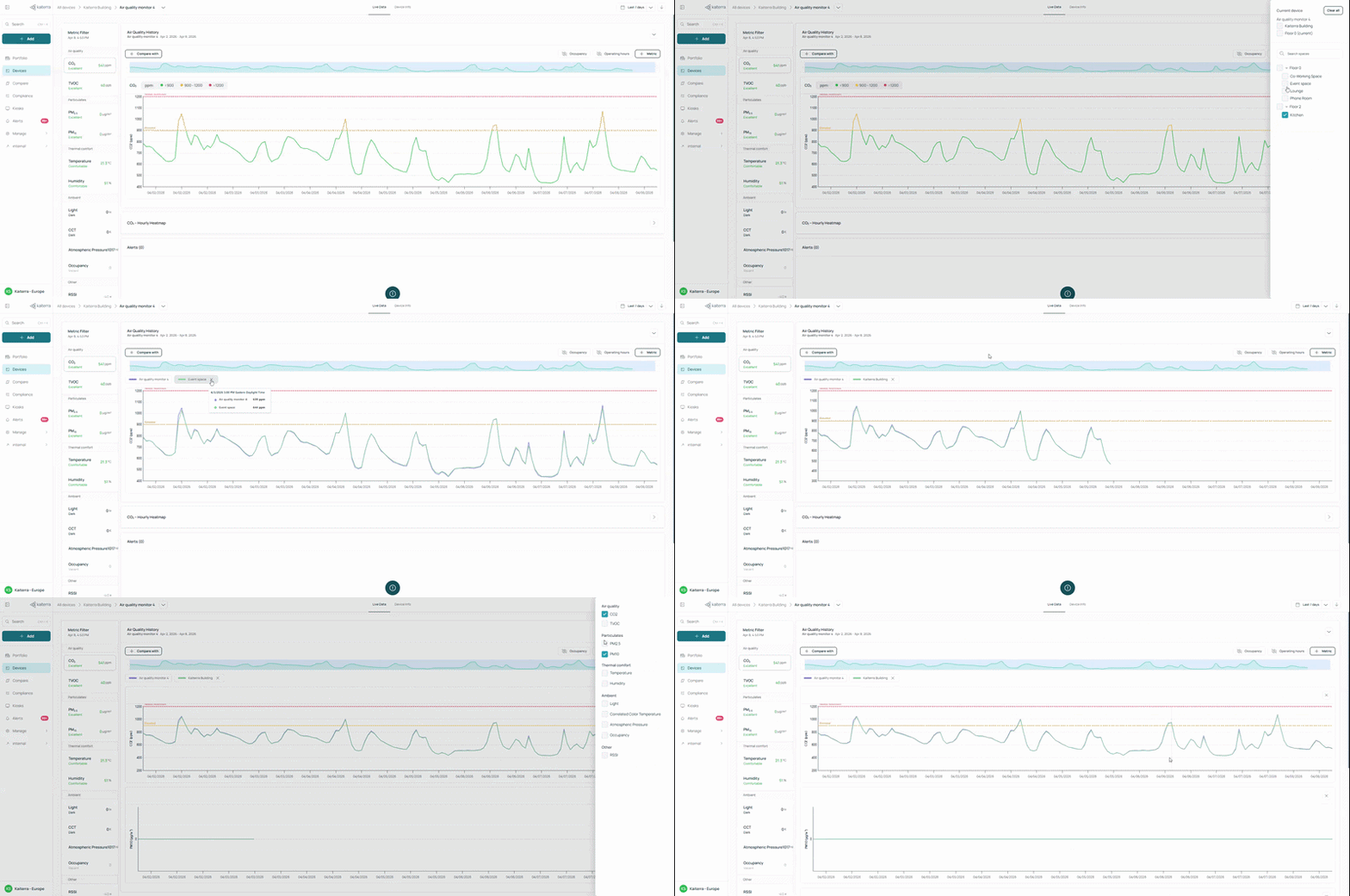
You can compare the selected device with building or floor averages, or with another device.
You can also add additional metrics by clicking the “+ Metric” button, which creates a new graph for that metric. This helps you compare how different metrics change over time.
Adjusting the Timeframe and Using the Heatmap
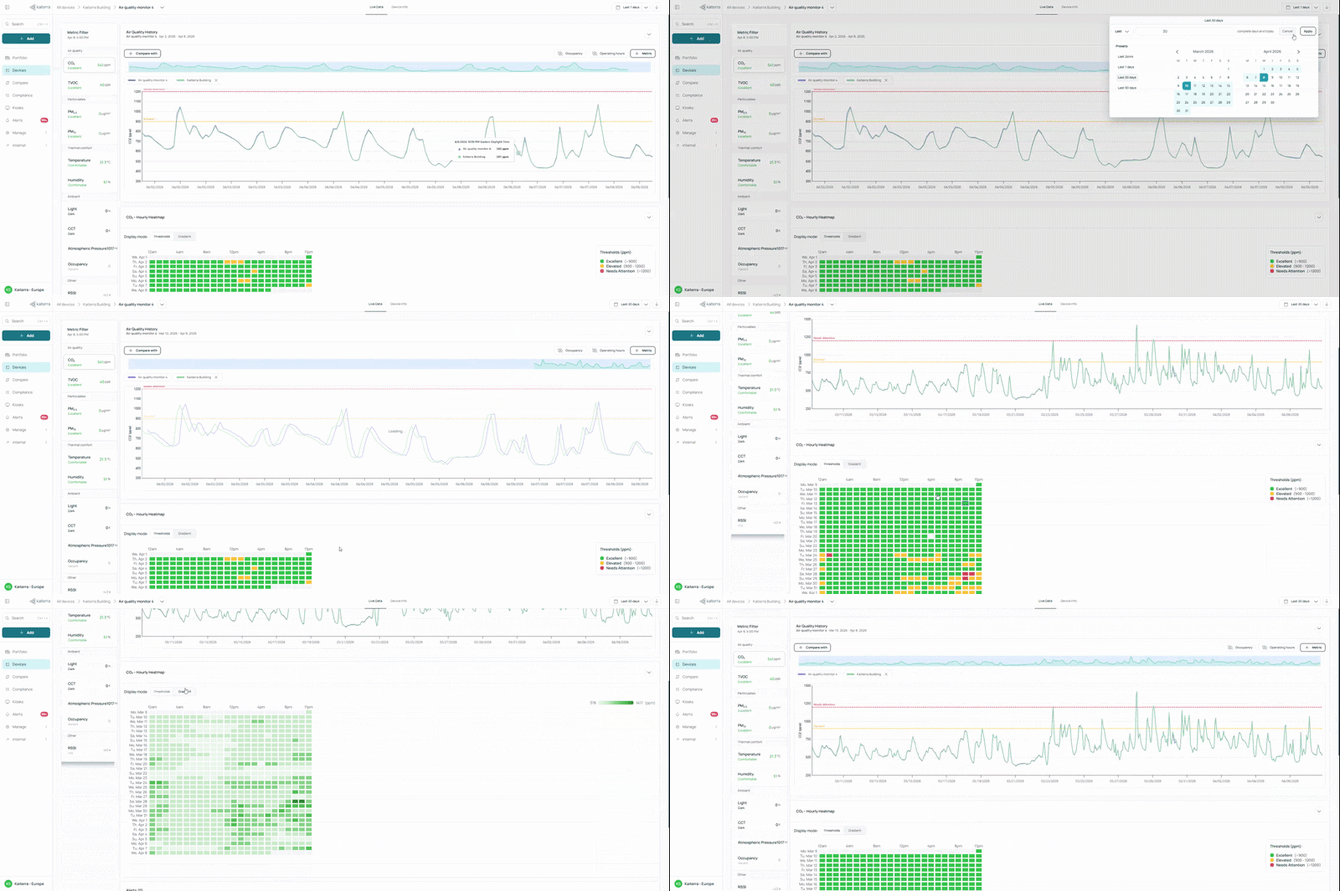
You can change the date range to view data over different periods.
Below the graph, the heatmap shows how conditions change across different days and times, giving you a quick overview of patterns without reviewing the full graph.
You can also switch between Threshold view and Gradient view to change how the data is displayed.
Threshold view groups data into ranges, making it easier to see whether values are within the target. Gradient view uses a continuous color scale, allowing you to see more detailed changes.
Device Info

You can look up specific technical and location details for your hardware by navigating to the Device Info tab, located near the top of the Live Data Page.
This section provides a clear list of identification and deployment data for the selected sensor. Within this tab, you will find a data table containing the Device UDID (a unique alphanumeric identifier) and the Device ID, which are essential for technical troubleshooting.
It also displays the Device Location, explicitly stating the Building, Floor, and Space where the hardware is assigned.
Additionally, you can review further Device Details, such as the device name, hardware model, current firmware version, and the remaining Module Life, which indicates when a sensor replacement is required