![White-logo-email.png]](https://support.kaiterra.com/hs-fs/hubfs/Images/White-logo-email.png?height=40&name=White-logo-email.png)
When Should You Use This Page?
Use this feature when you want to see how data is distributed across your floor plan.
What You’ll See
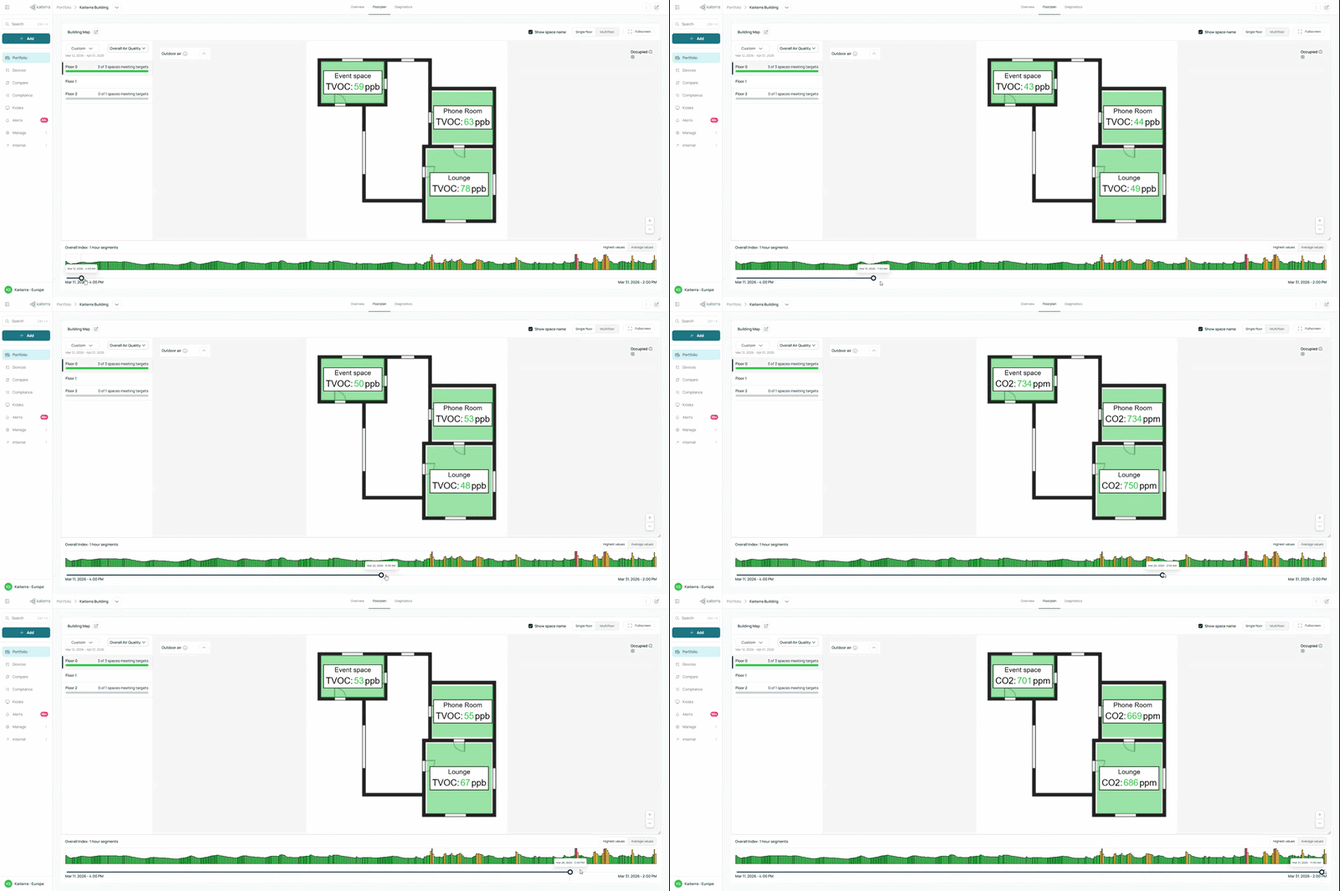
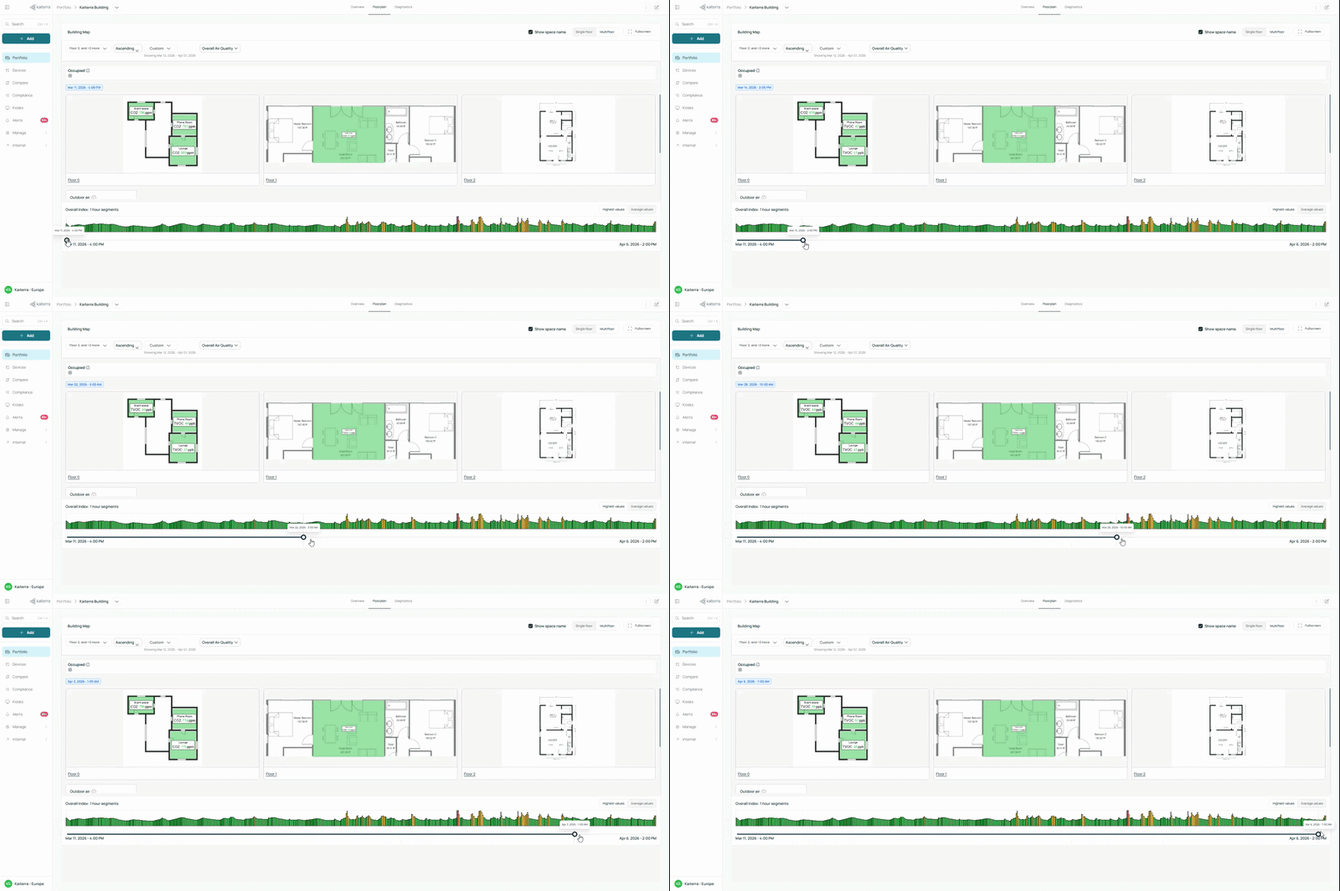
You’ll see your floor plan with data mapped across each space. This allows you to view how air quality or specific metrics, such as PM2.5, are spread throughout the layout. You can also switch between a single-floor view and a multiple-floor view.
You can use the scrubber at the bottom to move through time and see how conditions change throughout the day.
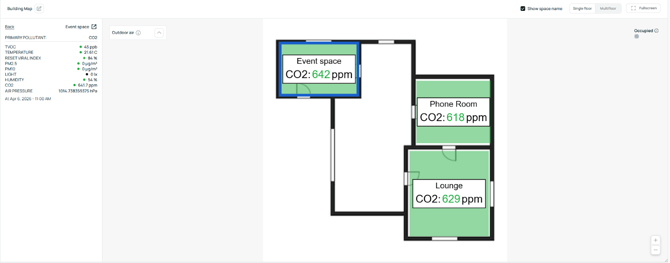
Clicking on any space will open a detailed view showing metrics like CO₂, PM2.5, TVOC, temperature, and humidity..
How to Set Up Your Floor Plan
Before uploading a floor plan, you’ll first need to create your floors (if you haven’t done so, when setting up your building).
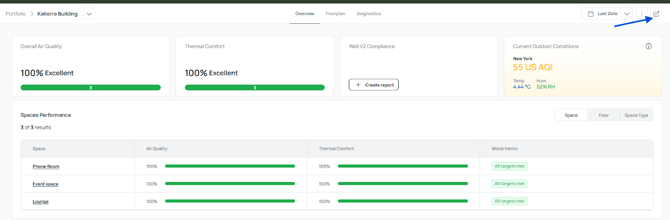
From the Building Page, click the pencil icon in the top right corner. This will open the “+ Add” page.
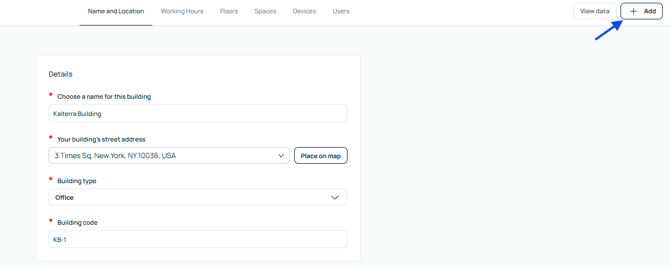
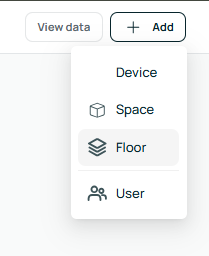
From there, click the “+ Add” button again and select Floor.
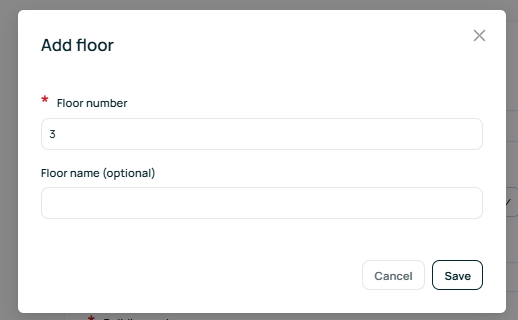
You can then create the number of floors for your building.
Note*
If your building has multiple floors but you only occupy some of them, you should still enter the total number of floors.
When uploading floor plans later, you only need to upload plans for the floors you occupy.
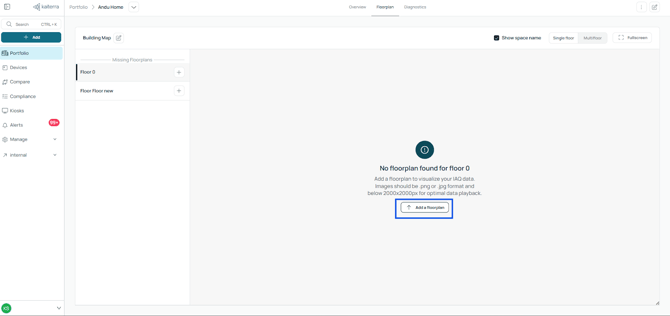
To upload a floor plan, go to your building page. From there, navigate to the Floor Plan section and select the correct floor.
You can upload a JPG file of your layout.
Mapping Your Spaces
-1.gif?width=670&height=274&name=Map%20devices%20(gif)-1.gif)
.gif?width=480&height=318&name=Anchor%20points%20(gif).gif)
Once uploaded, you can map your spaces by selecting Edit Floorplan and using the Draw Space tool.
Click and drag over the area you want to define. If the space is not a perfect shape, you can adjust it by adding and moving anchor points.